

I have tried a lot of chart-reading tools over the years, from highlighter tape to magnetic boards to the classic “write every row on a notepad and hope the cat doesn’t sit on it” method.
I still love a good paper chart setup, and I’ll never tell you that every knitting solution needs to be high tech. However, these days, when I’m knitting from a chart, I almost always use KnitCompanion.
I have the paid version of the app, and I can confidently say it’s worth every penny. I just finished using it to knit this baby blanket, and I decided that I definitely had to write a review for ya’ll because it made the project so easy.
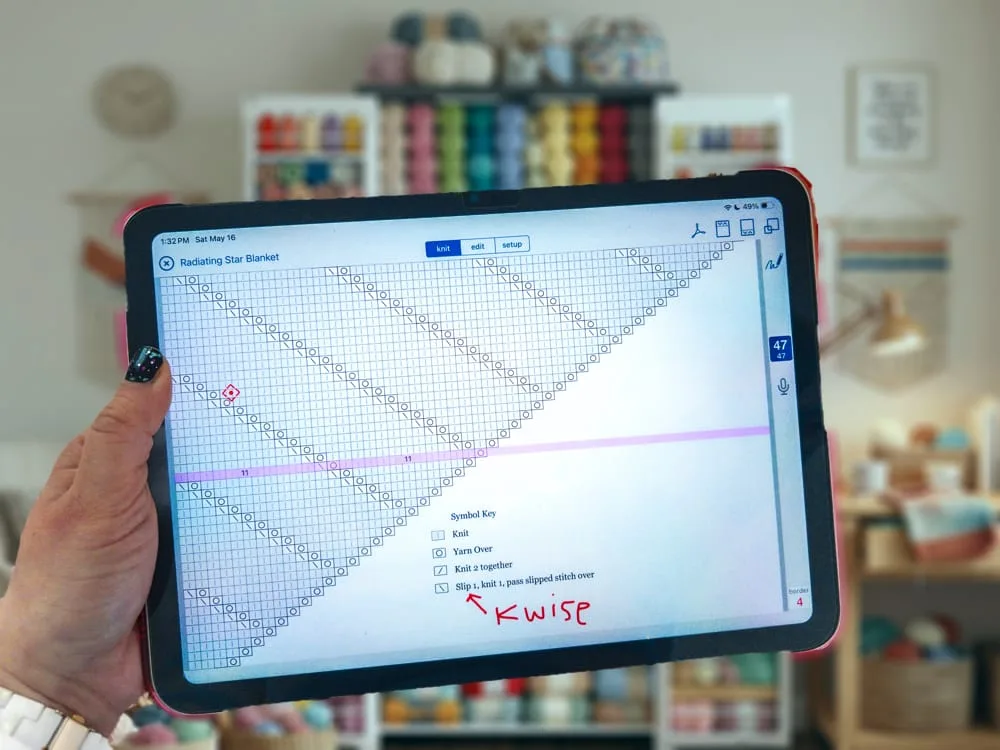
At its simplest, KnitCompanion lets you track where you are in a knitting pattern. You upload your PDF pattern and use a slider to mark your place as you read along and/or you can use the built in digital row counters.
Those basic features are all included in the free version and they are super useful.
But the paid features are where it really starts to blow my mind. I don’t just need to know what row I’m on. I need to know which stitches are repeats, which parts are plain knitting, which instructions apply only sometimes, and whether I made an alteration that I will definitely not remember later. (Spoiler alert: I never remember later.)
Switching Between My iPad and iPhone
One of the things I really love about KnitCompanion is that I can sync my project to iCloud and switch between my iPad and iPhone as needed. This is very handy.
Most of the time, I prefer working from my iPad because the screen is bigger and easier to read, especially now that my eyes are getting older. But if I’m out and about or just need the row counter, it’s so convenient to pull up the project on my phone. In fact, I used to have a Kindle Fire, but I eventually bought myself an iPad specifically so I could use KnitCompanion this way. That might sound a little extra, but honestly, it was worth it.
FYI – KnitCompanion is available on Android too, so as long as your phone OS matches your tablet OS, you’re cool. (So, technically, it is possible to archive your project on one device, upload to Dropbox, then download it to a device with a different OS and switch between them that way. But I don’t have time for that nonsense! lol!)
Anyway, I digress… I’ll move on to sharing some of my favorite features in KnitCompanion.
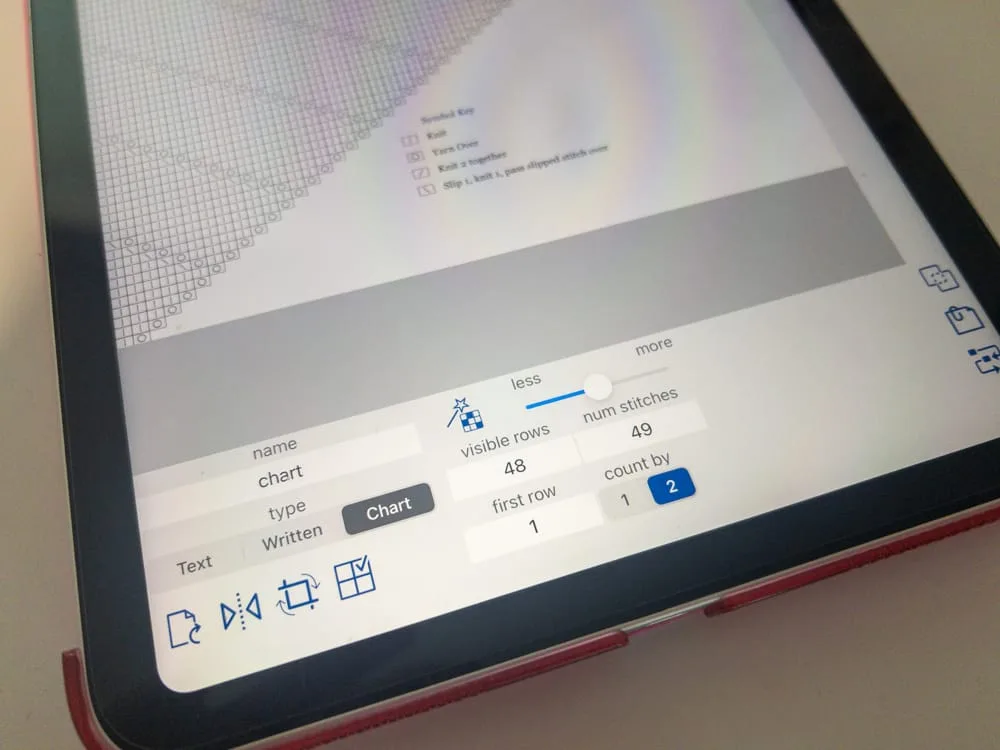
The “Count by 2” Row Counter (For Charts Without Rest Rows)
The chart for the baby blanket that inspired this post only included the “action rows.” The rest rows were not charted, which is pretty common in lace or texture patterns where every other row is worked plainly.
That is totally fine in theory, but in practice, I do not want to be doing math every time I finish a row.
In KnitCompanion, I adjusted the row counter setting so it would count by 2. That meant the highlight on the chart could move from Row 1 to Row 3 to Row 5, matching the actual charted rows instead of making me always wonder when it’s time to click the row counter.
This is one of those small features that feels boring until you need it. Then it becomes magical.
Magic Markers
The feature I loved most for this project was Magic Markers.
Magic Markers are often used to highlight the special stitches in different colors, but in this project, I used the Magic Marker feature to “grey out” the plain knit stitches so the action stitches stand out more clearly, which helped my eyes move across the chart without getting lost in a tiny grid of boxes.
Even better, I turned on “show count,” so KnitCompanion displayed a number telling me how many knit stitches to work in between the eyelets. Check out the screenshot below. Instead of counting each little box one by one across big sections, I can see at a glance that I need to knit 4 stitches in one section, then ten in the next.
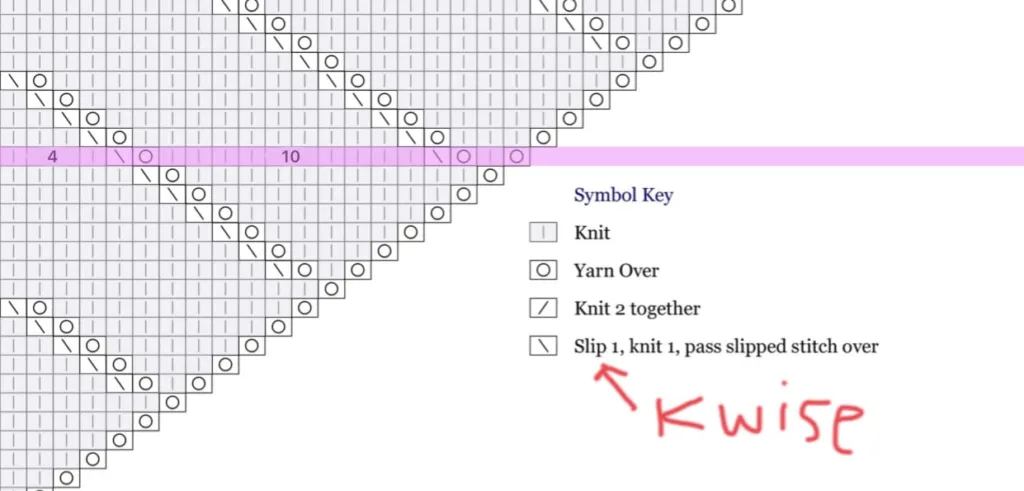
This chart on this pattern gets pretty wide near the end, so this just made my life easier. Less thinking, more knitting.
Notes and Scribbles!
I also use the note and scribble functions all the time. Notes are helpful for anything you want to remember later, like reminders of weird stuff you did that you need to keep symmetrical or other adjustments. You can type them out directly in the margins or leave a little icon where you can click on it and a box pops up that holds a longer note.
The scribble tool is good for quick marks right on the pattern. As you see in the screenshot above, I scribbled a little note to remind me to slip the stitch knitwise. I also love using the scribble tool to cross out instructions for sizes I’m using when I knit a garment.
The Project Timer
I also use the project timer. The blanket I just finished took 23 hours and 22 minutes to knit. I’m a data nerd, so I just love having that information. I know, knitting is not a productivity contest, but I do find it satisfying to know how much time went into a project.
Also, if anyone ever asks how long it takes to knit a baby blanket, I now have a very specific answer instead of waving vaguely at the universe and saying, “a while?”
So….. is the Paid Version of KnitCompanion Worth It?
For me, yes. Absolutely.
I think the free version is useful, but if you knit from charts often – especially lace, cables, colorwork, or anything with a lot of repeats – the paid version is where it’s at.
That said, there is a learning curve. This is not an app where you will figure out how to use every feature by quickly poking around and doing some casual button-pressing. I recommend starting with one or two features at a time, and eventually you’ll be a pro! There’s a collection of clear tutorials on KnitCompanion’s website, and their customer support team is super nice. (I talked to them when I was trying to get away with using two different types of devices before I broke down and bought the iPad).
But… You Don’t Have to Choose Between Paper and Digital!
One thing I want to be clear about: using KnitCompanion doesn’t mean I’ve abandoned paper patterns forever.
There are still plenty of times when a printed pattern is exactly what I want. Paper is simple, portable, and easy to mark up. You don’t have to charge it, sync it, and you can use it as a coaster in a pinch.
For some projects, especially smaller or less complicated ones, paper is a perfectly good option (assuming you have access to a printer, which is not a given.) But sometimes going digital makes a big difference and I hope you’ll check this app out!
P.S. I wrote another post about digital vs. paper chart tracking tools several years ago, back when I was in love with a now-extinct app called KnitCounters on my iPhone, but casually using KnitCompanion on my Kindle Fire. If you’re a paper person, I list out my favorite analog chart-tracking supplies there, so check that out.
P.S.S. KnitCompanion is not paying me to write this post, I just really like their product. 😉
Leave a Comment